
Is It Safe to Use a Vacuum a Computer? Facts First

Is it safe to use a vacuum a computer sounds like a simple question, yet it sparks plenty of confusion. Dust builds up inside desktops and laptops faster than many people expect, especially in homes with pets, carpets, or limited airflow. A vacuum seems like the quickest fix because it pulls debris away in seconds. Still, the answer isn't as straightforward as grabbing the nearest household vacuum and getting to work.
Static electricity sits at the center of the debate. Many traditional vacuum cleaners generate static charges while moving air and dust through plastic hoses and attachments. Those charges may not be noticeable to the touch, but sensitive computer components can react differently. A tiny electrostatic discharge can potentially damage circuit boards, memory modules, or other delicate hardware.
Dust itself creates another headache. Thick layers of debris can trap heat around processors, graphics cards, cooling fans, and power supplies. Rising temperatures often lead to louder fan noise, reduced performance, and unexpected shutdowns. Keeping a system clean remains a key factor in maintaining stable operation and extending hardware lifespan.
Many people reach for a vacuum because compressed air can be messy. Dust clouds floating around a room aren't exactly pleasant, and nobody enjoys cleaning afterward. Yet convenience doesn't always equal safety. Certain cleaning methods reduce risk significantly, while others introduce problems that aren't obvious until damage has already occurred.
Context matters, too. Specialized electronics vacuums are designed differently from standard household models and often include anti-static protection. A computer technician may use one without concern because the equipment was built for sensitive electronics. A regular vacuum cleaner from a closet, on the other hand, presents a different situation entirely.
Another challenge involves physical contact. Vacuum attachments can accidentally strike fan blades, connectors, cables, or motherboard components during cleaning. A rushed cleaning session can cause more trouble than the dust itself. Careful handling and proper tools often make the difference between routine maintenance and an expensive repair.
Safe cleaning practices focus on balancing effectiveness with protection. Many experienced technicians prefer compressed air, anti-static brushes, and proper grounding methods before touching internal components. These approaches remove dust while minimizing electrical risks. Small precautions can prevent big headaches later.
People often worry after noticing heavy dust accumulation through a computer case window or inside cooling vents. That concern is justified because clogged airflow can affect performance over time. The good news is that cleaning a computer doesn't require complicated procedures. Using the right method simply helps avoid unnecessary risks.

- VC Score10.0
BCP Score is a ranking system developed by bestcleanerproducts.com. BCP Score has no relationship or impact from any manufacturers or sales agent websites. Learn more
- BrandDzaki

- VC Score9.4
BCP Score is a ranking system developed by bestcleanerproducts.com. BCP Score has no relationship or impact from any manufacturers or sales agent websites. Learn more
- BrandIT Dusters
- VC Score9.2
BCP Score is a ranking system developed by bestcleanerproducts.com. BCP Score has no relationship or impact from any manufacturers or sales agent websites. Learn more
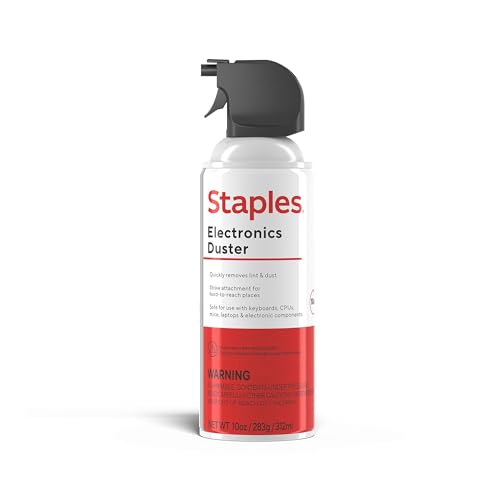
- BrandSTAPLES
- VC Score9.0
BCP Score is a ranking system developed by bestcleanerproducts.com. BCP Score has no relationship or impact from any manufacturers or sales agent websites. Learn more
- BrandFRESMOL

- VC Score9.0
BCP Score is a ranking system developed by bestcleanerproducts.com. BCP Score has no relationship or impact from any manufacturers or sales agent websites. Learn more
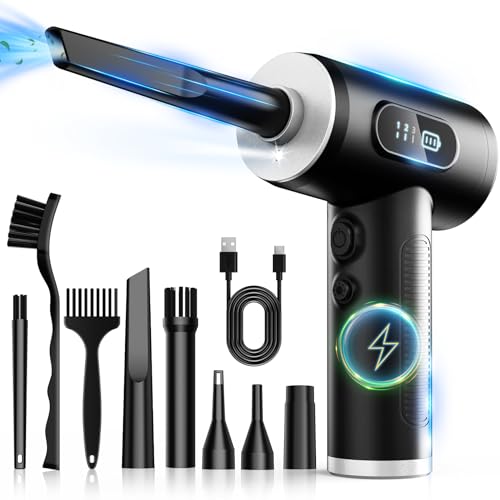
- BrandZOAIVR
- VC Score8.8
BCP Score is a ranking system developed by bestcleanerproducts.com. BCP Score has no relationship or impact from any manufacturers or sales agent websites. Learn more
- BrandMETROVAC
- VC Score8.8
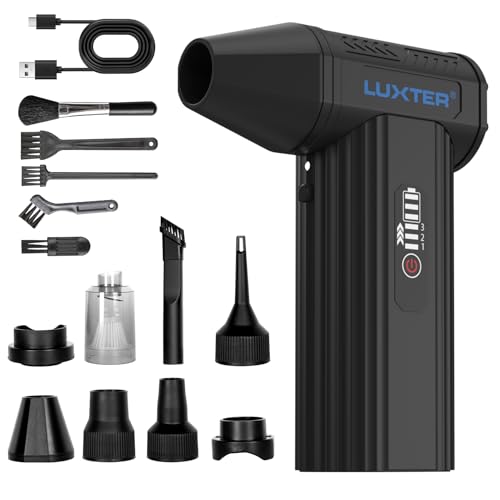
BCP Score is a ranking system developed by bestcleanerproducts.com. BCP Score has no relationship or impact from any manufacturers or sales agent websites. Learn more
- BrandLUXTER

- VC Score8.6
BCP Score is a ranking system developed by bestcleanerproducts.com. BCP Score has no relationship or impact from any manufacturers or sales agent websites. Learn more
- BrandMeudeen

- VC Score8.4
BCP Score is a ranking system developed by bestcleanerproducts.com. BCP Score has no relationship or impact from any manufacturers or sales agent websites. Learn more
- BrandMETROVAC

- VC Score8.0
BCP Score is a ranking system developed by bestcleanerproducts.com. BCP Score has no relationship or impact from any manufacturers or sales agent websites. Learn more
- BrandMeudeen
Last update on 2026-06-28 / Affiliate links / Images, Product Titles, and Product Highlights from Amazon Product Advertising API
Is It Safe To Use A Vacuum A Computer
A dusty fan can make a desktop sound like a tiny leaf blower under the desk, and yeah, that noise gets old fast. Heat builds, vents clog, and the whole machine starts acting cranky right when you need it to behave. The question is it safe to use a vacuum a computer usually comes from that exact moment, staring at gray fuzz packed around a vent and wanting the quickest fix. A regular household vacuum can remove dust, but it can also bring static electricity, rough suction, and accidental bumps into places where fragile parts don't forgive sloppy handling.
Vacuuming A Computer Safely
The plain answer is this: using a standard household vacuum inside a computer is usually not the safest move. The big concern isn't just suction, although that can be an issue around small connectors and fan blades. The scarier part is electrostatic discharge, the little zap that can happen when air, dust, plastic hoses, and dry rooms all team up. You might not feel anything, but a motherboard, RAM stick, or graphics card can be far less forgiving.
Computer parts don't need dramatic sparks to get hurt. A tiny discharge can weaken sensitive components, and sometimes the damage doesn't show up right away. That's what makes the whole thing annoying. The computer may boot fine today, then start acting flaky later, leaving you wondering whether dust, heat, or that quick vacuum session started the mess.
A vacuum also encourages people to get too close. The nozzle looks harmless, then suddenly it's tapping a fan, pulling against a cable, or nudging a small capacitor. Fans are especially easy to mishandle because they spin freely and feel sturdy, but overspinning fan blades with forced airflow or suction can stress the bearings. Holding fans still during cleaning helps, but that doesn't make a regular vacuum the best tool for the job.
External cleaning is a different story. Using a vacuum near the outside of a case, especially around the floor, desk, and rear exhaust area, can be reasonable if the nozzle doesn't touch ports or internal parts. Keep a small gap, move slowly, and don't drag the plastic attachment across metal connectors. For tiny apartments or tight workspaces, keeping floor dust down matters too, and to cut down daily debris before it reaches your desk setup, compare a robot vacuum for small home that fits cramped rooms without making cleaning feel like a chore.
Why Static Electricity Makes Tech People Nervous
Static electricity sounds like a small thing until it meets a circuit board. Plastic vacuum hoses can build a charge as dust and air rush through them. Dry indoor air makes that risk worse, especially in carpeted rooms or during colder months when humidity drops. That little snap you sometimes feel from touching a doorknob is the same family of problem, just in a place where your computer really doesn't want surprises.
Technicians tend to be picky about this because they have seen weird failures that are hard to trace. A computer can survive plenty of abuse, sure, but that doesn't mean gambling with static is smart. RAM, storage drives, GPU contacts, and motherboard traces all sit in the danger zone during careless cleaning. The safer path is boring, but boring saves money.
Anti-static tools exist for a reason. Electronics-safe vacuums use designs that reduce static buildup, and anti-static brushes help loosen dust without dragging a charged plastic tube across components. An ESD wrist strap can also help if you're working inside the case, provided it's used correctly. Those details may sound fussy, but they matter when the computer stores work files, photos, business data, or half-finished projects you can't afford to lose.
Household vacuums aren't built with circuit boards in mind. They were made for crumbs, carpet grit, pet hair, and dust bunnies under the couch. That difference is why the same machine that handles a hallway just fine can be a bad fit inside a PC case. The job looks similar on the surface, but the risks change once sensitive electronics enter the picture.
Better Tools For Dusty Computers
Compressed air remains a common choice because it pushes dust out without dragging a vacuum nozzle through the case. Short bursts work better than long sprays, and the can should stay upright to avoid liquid propellant hitting components. Hold fan blades still with a finger or soft tool while blowing air through heatsinks and vents. That one habit protects fan bearings and keeps the cleanup from turning into a new problem.
An anti-static brush is handy for stubborn dust packed into heatsink fins, fan frames, and corners around the power supply shroud. Soft bristles can loosen grime before air pushes it away. Don't use a random paintbrush from a drawer unless you know it's safe for electronics. Cheap brushes can shed fibers, hold static, or scratch surfaces if they're too stiff.
A microfiber cloth helps with exterior surfaces, side panels, and plastic bezels. Lightly dampening the cloth with a small amount of isopropyl alcohol can help remove fingerprints and sticky grime from non-powered exterior areas. Keep liquids away from open vents, ports, and internal boards. Moisture and electronics make a lousy pair, and rushing that part can turn a simple cleaning job into a repair bill.
Small accessories can be cleaned separately after removal, but don't mix computer parts with jewelry-cleaning habits. Keycaps, metal brackets, and non-electronic pieces may tolerate different cleaning methods, while circuit boards and powered parts do not. For a totally separate cleaning task around small household items, use the right fluid guide for ultrasonic jewelry cleaner instead of borrowing random liquids near your PC. Keeping each cleaning method in its own lane avoids dumb mistakes.
How To Clean Without Making A Bigger Mess
Shut the computer down fully before cleaning. Unplug the power cable, switch off the power supply if the case has a rear switch, and hold the power button for a few seconds after unplugging. That helps discharge leftover power in the system. Give yourself room to work, because cramped spaces lead to bumped cables and dropped screws.
Move the computer somewhere with decent ventilation if possible. Dust will fly, and that's just part of the job. A garage, balcony, or easy-to-clean floor works better than a bed or thick carpet. Carpets already raise static risk, and they also love catching screws that vanish like they owe you money.
Open the side panel carefully and take a quick look before touching anything. Notice where the big dust pockets sit: front intake filters, CPU cooler, graphics card fans, rear exhaust, and power supply area. Clean from the top down so loosened dust doesn't settle back onto parts you already handled. Slow, steady work beats aggressive blasting every time.
Use compressed air in short bursts and keep the nozzle a little distance away from components. Hold fans still, blow through heatsinks from multiple angles, and avoid forcing air directly into enclosed power supply internals unless you know what you're doing. The power supply can hold dangerous charge, so don't open it. External dust removal around its vents is fine, but internal power supply cleaning belongs to qualified repair work.
Where A Vacuum Can Still Help
A vacuum isn't useless around a computer. It just shouldn't be treated like the main tool inside the case. Use it to clean the desk, floor, wall area, and loose dust that lands nearby after compressed air does its job. That keeps debris from getting pulled back into intake fans a day later.
Case filters are often safe to vacuum after removal. Take the filter off the computer first, then clean it away from exposed parts. Mesh filters on the front or bottom of a case collect a surprising amount of lint, especially in homes with pets. A clean filter supports better airflow without inviting a charged vacuum nozzle near the motherboard.
Laptops need extra caution because their internals are packed tightly. Vacuuming a laptop keyboard or vent may pull loose crumbs, but it won't properly clean heatsinks buried inside the chassis. Strong suction can also tug at keycaps or small trim pieces. For overheating laptops, a careful external air-cleaning routine may help, but serious dust buildup often needs proper disassembly by someone comfortable with tiny screws and ribbon cables.
Thick carpet near a computer desk creates a steady dust source, and that dust ends up in fans sooner or later. Keeping the room cleaner reduces how often the computer needs internal cleaning. For setups sitting on plush flooring, reduce tracked-in fibers and dust with a practical miele vacuum for thick carpet before debris gets pulled toward the tower intake. The computer still needs safe maintenance, but cleaner surroundings make the job less frequent.
Safe Methods To Maintain A Dust-Free Computer
Dust never takes a break, and neither do the heat traps inside a computer. Regularly clearing dust from vents, fans, and filters keeps temperatures lower and performance stable. Relying on a vacuum might be tempting, but safer alternatives prevent electrostatic damage while still pulling out built-up grime. Using controlled airflow and gentle brushes preserves the integrity of delicate components and reduces the risk of accidental dislodging of connectors or chips.
Using Compressed Air And Anti-Static Tools
Compressed air cans are a mainstay for internal cleaning. Short bursts loosen stubborn dust in heatsinks, fan blades, and corners of the case. Pairing that with an anti-static brush ensures dust removal without risking sensitive hardware. Preventing fans from spinning freely during cleaning helps avoid bearing damage, maintaining smooth operation and longevity of cooling systems.
Choosing the right technique also minimizes the creation of airborne dust clouds that settle back onto components. Targeting problem areas in multiple angles while keeping the nozzle at a safe distance reduces the chance of dislodging small pieces or connectors. It's a simple step that protects critical pathways in the system without introducing unnecessary risk.
Some technicians prefer to wear an ESD wrist strap when touching internal boards, grounding any static buildup safely. Even minor electrostatic discharges can weaken circuits and create intermittent faults that are tricky to diagnose. Maintaining a static-free workspace makes the overall process cleaner and safer for all internal components.
External filters are often removable and easier to clean. Vacuuming the filter away from the computer can restore airflow without the hazards of direct internal suction. For persistent dust near fans or vents, targeting the area with controlled compressed air while keeping the vacuum at a safe distance achieves a clean system safely. A practical example is using a stick vacuum for long hair on the desk and floor to prevent fibers from entering intake vents.
Keyboard And Peripheral Care
Keyboards, especially mechanical ones, accumulate dust and crumbs that can migrate inside the machine. Using compressed air along with a soft brush removes debris while avoiding harsh impacts. Avoid vacuuming the keyboard directly unless the attachment is specifically designed to prevent excessive suction, which could pull keys or small internal parts.
External peripherals also benefit from gentle cleaning. Dust buildup in USB hubs, card readers, and external vents reduces airflow and can contribute to higher operating temperatures. Light dusting and careful air blasts preserve hardware function without introducing electrostatic threats. A steady routine maintains both comfort and performance during daily use.
Preventing crumbs, pet hair, and dust from ever reaching sensitive ports reduces the frequency of internal interventions. Setting up a desk cleaning routine using small vacuums or brushes for peripherals keeps the surrounding environment safe. A consistent approach supports long-term reliability of the entire computer setup.
For intensive keyboard or peripheral cleaning, a dedicated electronics-safe vacuum can be beneficial. Specialized vacuums provide targeted suction without generating harmful static. They complement internal cleaning tools, ensuring a holistic approach to dust control across all surfaces and components.
Laptop Internal Cleaning Strategies
Laptops pose unique challenges due to their compact and tightly packed components. Relying on a household vacuum is generally discouraged because of the risk to fragile ribbon cables and soldered connections. Compressed air remains the safer option, particularly when combined with small anti-static brushes for heatsinks and fan inlets.
Regularly cleaning the exterior vents helps maintain proper airflow, reducing heat accumulation. Keeping the device elevated slightly allows dust to exit more freely and prevents it from resettling. Controlling the environment around the laptop with occasional vacuuming of nearby carpet or desk dust further minimizes internal accumulation.
Occasional professional servicing might be required for persistent dust within critical cooling channels. For users unwilling to risk disassembly, safe external cleaning techniques suffice to maintain acceptable performance. The combination of preventive cleaning and cautious interventions extends hardware lifespan and reduces the chance of overheating.
Some users explore compact cleaning tools specifically designed for laptops, integrating gentle suction with anti-static measures. These products balance dust removal effectiveness and component protection. Following these protocols avoids accidental damage while keeping the laptop functional and cool.
Maintaining Airflow And Cooling Efficiency
Airflow is the unsung hero of computer stability. Dust blocking intake and exhaust vents creates hotspots that trigger higher fan speeds and unnecessary noise. Ensuring clear pathways with proper cleaning methods supports thermal management and prolongs component life.
Cleaning the CPU cooler and GPU heatsinks carefully is essential. These areas collect dense dust, and improper handling can bend fins or dislodge heat pipes. Using compressed air combined with an anti-static brush removes buildup without compromising cooling efficiency or structural integrity.
Periodic maintenance prevents fans from overworking and producing audible stress noises. Reducing dust accumulation reduces wear on bearings and keeps rotational motion smooth. Maintaining consistent airflow is a critical factor for both performance and quiet operation.
Environmental considerations also matter. Reducing floor dust, carpet fibers, and pet hair before it enters the intake vents lowers the frequency of internal cleaning. A regular desk vacuum routine and clean surroundings make all the difference, preserving system health without high-risk internal intervention.
Long-Term Maintenance And Best Practices
Establishing a routine that combines external vacuuming, compressed air, and anti-static brushing ensures a dust-free machine with minimal risk. Gradually removing buildup prevents sudden temperature spikes and performance issues. Planning maintenance in intervals keeps the computer running efficiently and reduces hardware stress.
Monitoring environmental factors like humidity and airflow can complement cleaning efforts. Lower dust levels in the room translate to longer periods between internal interventions. Combining preventive practices with careful external cleaning supports long-term reliability of your setup.
For stubborn buildup or specialized equipment, consulting service manuals or using dedicated electronics vacuums adds an extra layer of safety. Even occasional professional cleaning reduces the chance of accidental damage during personal maintenance. Balancing effort and caution maintains the strength and functionality of critical components.
Overall, safe maintenance revolves around respect for sensitive components, gradual cleaning, and using the right tools for each task. Simple adjustments in how dust is addressed, combined with proper handling and environment control, provide a secure path to a consistently clean and reliable computer system. To complement internal maintenance, using a compact cleaning device like the xlife ear cleaner can keep small workspace areas free of particles that would otherwise reach your machine.

How to Refinish a Fiberglass Pool

How Do You Keep Raccoons Out of Your Pool?

How to Fix Cyanuric Acid in Your Pool

How to Shape a Pool Cue Tip to Stop Miscues

Best Far Infrared Sauna Sauna Heats: Top Picks of 2026

11 Best Far Infrared Sauna Carbon Fiber Heaters of 2026 For Balanced Full-Body Heat

11 Best Carbon Far Infrared Sauna of 2026 For Even Heat

10 Best Bluetooth Speaker For Sauna of 2026 For Heat and Steam


